
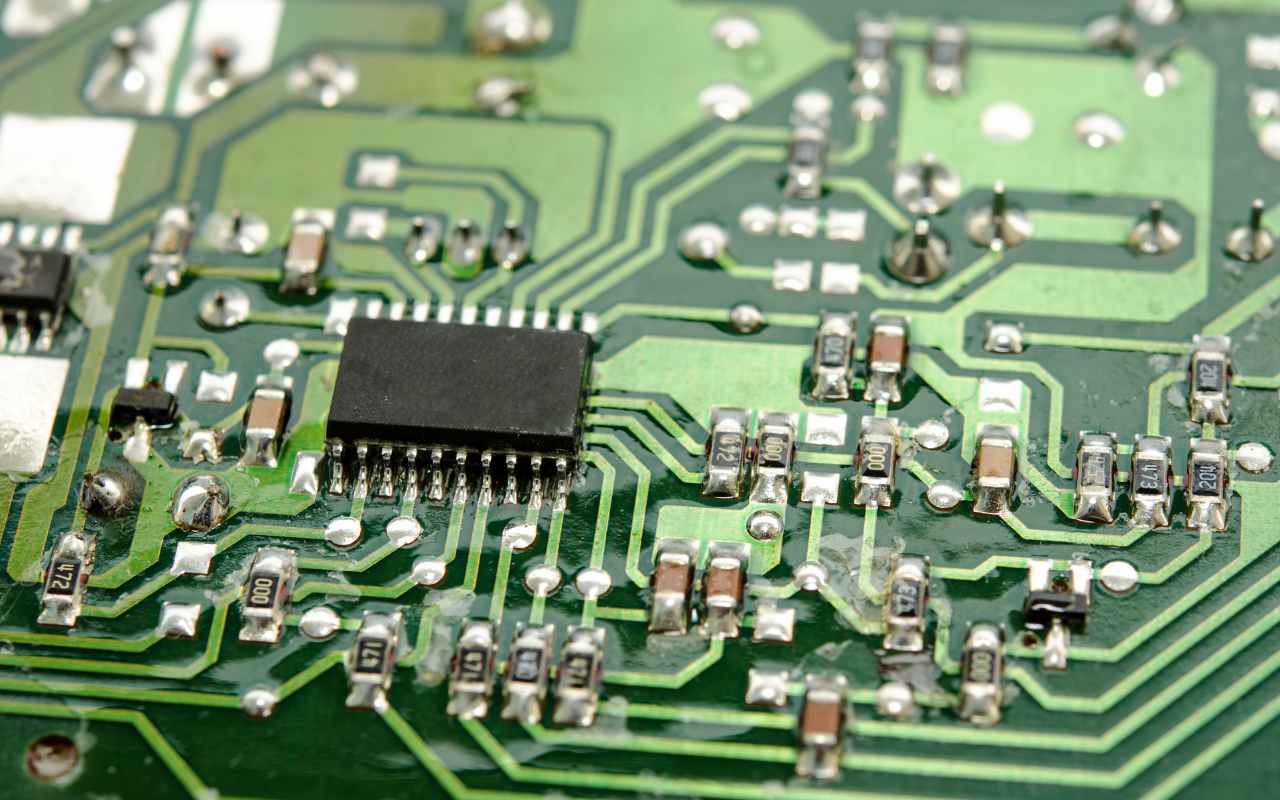
Knowing how to see what motherboard you have is a crucial first step—whether you’re upgrading your computer, diagnosing hardware issues, or just curious. The motherboard, also known as the “system board” or “mainboard,” is the central component of your computer. It determines much of your system’s performance and connects all other hardware. Yet, it’s surprisingly common for users to be unaware of their motherboard’s make and model.
In this blog post, we’ll walk you through several easy ways on how to see what motherboard you have on both Windows and macOS devices—no need to take your computer apart (unless you want to). We’ll also explain why it’s useful to know this information and what to do if you need help with hardware-related issues.
Why Your Motherboard Information Matters
The kind of CPU, RAM, graphics cards, and storage that your system can support depends on your motherboard. It also influences networking possibilities, audio features, USB port count, and even how future-proof your computer is.
Knowing your motherboard model can help you:
- Upgrade your CPU or RAM with compatible parts
- Download correct drivers or firmware
- Check warranty or product support
- Troubleshoot BIOS or boot-related problems
- Plan for a complete system rebuild or modification
Without this information, upgrading or repairing your computer becomes a guessing game—which can be expensive and frustrating.
Method 1: Use Command Prompt (Windows Only)
The Command Prompt is the simplest tool for determining your motherboard model if you’re using Windows 10 or 11.
To begin, open the Run dialogue by pressing the Windows key + R. After typing cmd, hit Enter. Enter the following command in the Command Prompt window:
wmic baseboard get product,manufacturer,version,serialnumber
After pressing Enter, your computer will show the motherboard’s model and manufacturer. For instance, you may see “PRIME B450M-A” as the product and “ASUS” as the manufacturer. This provides you with all the information you need to start looking into compatibility or upgrades.
Method 2: Use System Information (Windows)
Would you rather not use the command line? No issue. To achieve the same outcomes, you can utilise the System Information utility that comes with Windows.
Simply press the Windows key + R to bring up the Run dialogue box once more, type msinfo32, and press Enter. A new window with comprehensive system data will open. The BaseBoard Manufacturer, BaseBoard Product, and BaseBoard Version entries will appear if you scroll down. Together, these details outline the precise motherboard that is installed in your computer.
The majority of people choose this method because it is compatible with almost all Windows desktops and laptops.
Method 3: Use Third-Party Apps for More Detail
Third-party software is your best option if you need even more technical details, such the chipset, voltage settings, BIOS version, or PCIe slot kinds.
Well-known free programmes like CPU-Z, Speccy, and HWInfo may plainly show motherboard information, frequently in greater detail than Windows built-in capabilities. Many PC builders, gamers, and technicians utilise these safe software.
To view the precise motherboard model, manufacturer, and BIOS version after installation, select the “Mainboard” tab (in CPU-Z, for instance).
Method 4: Physically Check the Motherboard
You can open the casing of your desktop or laptop and examine the board directly if your computer won’t boot up or if you simply want to verify the precise model with your own eyes. The motherboard model is frequently printed prominently on the board, usually in the middle or next to the CPU socket or RAM slots.
It might say “ASRock X570 Phantom Gaming,” “Gigabyte B550M DS3H,” or “MSI Z790 PRO-A.” Before opening the case, make sure your gadget is turned off and unplugged from the wall. To prevent static harm when handling internal components, ground yourself.
How to Identify Your Logic Board (macOS)
On Macs, the motherboard is referred to as the logic board, and Apple doesn’t provide a direct way to view the model from macOS. However, you can still identify your logic board indirectly using your Mac’s model number.
Start by clicking the Apple icon and selecting About This Mac. Take note of the model identifier, such as iMac18,3 or MacBookPro14,1. Then, search Apple’s official support website or a reputable Mac database to find the associated logic board for that model.
If your Mac is having trouble booting, and you suspect a logic board issue, we can help you with our specialized Apple repair services. Learn more about how we work on iMacs by visiting our page on iMac repairs.

Use BIOS or UEFI to Check Motherboard Info
If you’re already rebooting your computer, another method is to enter the BIOS or UEFI firmware screen. This is typically accessed by pressing F2, DEL, or ESC during startup (the specific key depends on your motherboard brand).
In the BIOS menu, the manufacturer and model of the motherboard is often shown on the home or information page. While not as detailed as software tools, it’s helpful for confirming your system’s identity.
What If You’re Still Not Sure?
If you’re still having trouble figuring out what motherboard you have—or if you need advice on how to upgrade your computer without making compatibility mistakes—it may be time to reach out to a professional.
At Choicetel, we offer affordable and expert computer repair services for all types of desktops and laptops. With over 18 years of experience, our team is fully equipped to handle motherboard replacements, upgrades, diagnostics, and everything in between.
If you’re near Brisbane, Wynnum, or surrounding suburbs, you can drop by our workshop or we can come to you through our on-site computer repair service. Our technicians are trained to diagnose and resolve motherboard-related issues efficiently, so you’re not left guessing.

Local Support for Common Brands
In addition to general computer repairs, we also provide specialised repair services for major brands like HP. If your HP desktop or laptop isn’t working as expected, don’t stress. Our team can quickly determine if the problem is related to the motherboard, BIOS, or another component.
You can learn more about this by checking our page on HP laptop and computer repairs.
And if you’re in the Bulimba area and looking for reliable, nearby support, you can also explore our computer repairs in Bulimba. We understand the value of convenience and fast turnaround, and we’re here to help.
Need a Hand? We’re Here to Help
Understanding what motherboard you have is more than just a curiosity—it’s key to maintaining and upgrading your computer properly. With a few simple steps, you can uncover this critical piece of information using either software tools or by inspecting the system directly.
To recap:
- Use Command Prompt or System Information on Windows for a quick check.
- Try CPU-Z or Speccy for detailed diagnostics.
- On Macs, use “About This Mac” and online tools to determine the logic board model.
- Open the case only if you’re comfortable doing so and need physical confirmation.
- Contact professional help if you’re unsure or facing issues.
At Choicetel, we’re proud to help everyday users and business owners get more from their technology. Whether it’s identifying a component, fixing a faulty motherboard, or planning an upgrade, our team is ready to assist with honest advice, affordable pricing, and fast service.
Visit us at choicetel.com.au to book a service or explore more repair solutions today.