
Most of us have experienced this situation: your gadget is Wi-Fi-connected, yet you are unable to access the internet. It’s frustrating, especially when you need to get work done, join a Zoom call, or stream your favourite shows. It appears perplexing at first—after all, shouldn’t your gadget have internet access if it’s linked to your wireless network?
Not quite. Let’s break down what’s happening when you have WiFi but no internet, explore the common causes, and walk through the practical steps you can take to resolve it.
Recognising the Distinction Between the Internet and WiFi
Before we begin troubleshooting, it’s essential to understand that WiFi and the Internet are not the same thing.
WiFi is the wireless network in your home or office that allows your devices—like laptops, smartphones, and smart TVs to connect to a local router. This router manages traffic between devices and serves as a gateway to the internet.
The internet, on the other hand, is a vast network of computers and servers worldwide. Your router must be properly configured and connected to an internet service provider (ISP) to establish a connection between your home network and the wider internet.
So, when you have WiFi but no internet, it means your device is successfully connected to the router, but the router itself is not able to reach the internet.
Common Reasons Why You Have WiFi But No Internet
There are several reasons why your router might not be passing internet through to your devices. These include:
1. ISP Outage
Sometimes, the issue is not on your end at all. Your internet service provider could be experiencing a temporary outage due to maintenance or technical issues. To verify this, simply contact your ISP or visit their website from a mobile data-enabled device.
2. Modem or Router Problems
Your modem (which connects to your ISP) or router (which distributes the connection wirelessly) might be malfunctioning. It could be as simple as a need for a restart or as complex as outdated firmware or hardware failure.
3. Incorrect Configuration
A misconfigured router setting, incorrect IP address, or issues with DNS servers could prevent internet access. Even if WiFi appears to be working, a minor configuration error can block all data transfer beyond your home network.
4. Device-Specific Issues
Sometimes, only one device can’t connect to the internet, while others work just fine. In that case, the issue might lie within the device itself—such as outdated network drivers, misconfigured settings, or even a virus.
5. Expired Data Plan or Disconnected Service
If you’re on a prepaid internet plan or if there’s a billing issue with your ISP, your access could be suspended without affecting your local WiFi signal.
How to Fix It: Step-by-Step Troubleshooting
Now that we’ve covered the possible reasons let’s walk through some fixes that can help restore your internet connection.
Step 1: Restart Everything
If your router and modem are different devices, turn them off. Wait 30 seconds, then turn them back on. Restart your devices, too. This simple step often solves more problems than you’d expect.
Step 2: Examine Your Router’s Lights
Modern routers typically come equipped with indicator lights to indicate internet connectivity. A red or blinking light generally means no internet access. Refer to your router’s manual to understand the meaning of the lights.
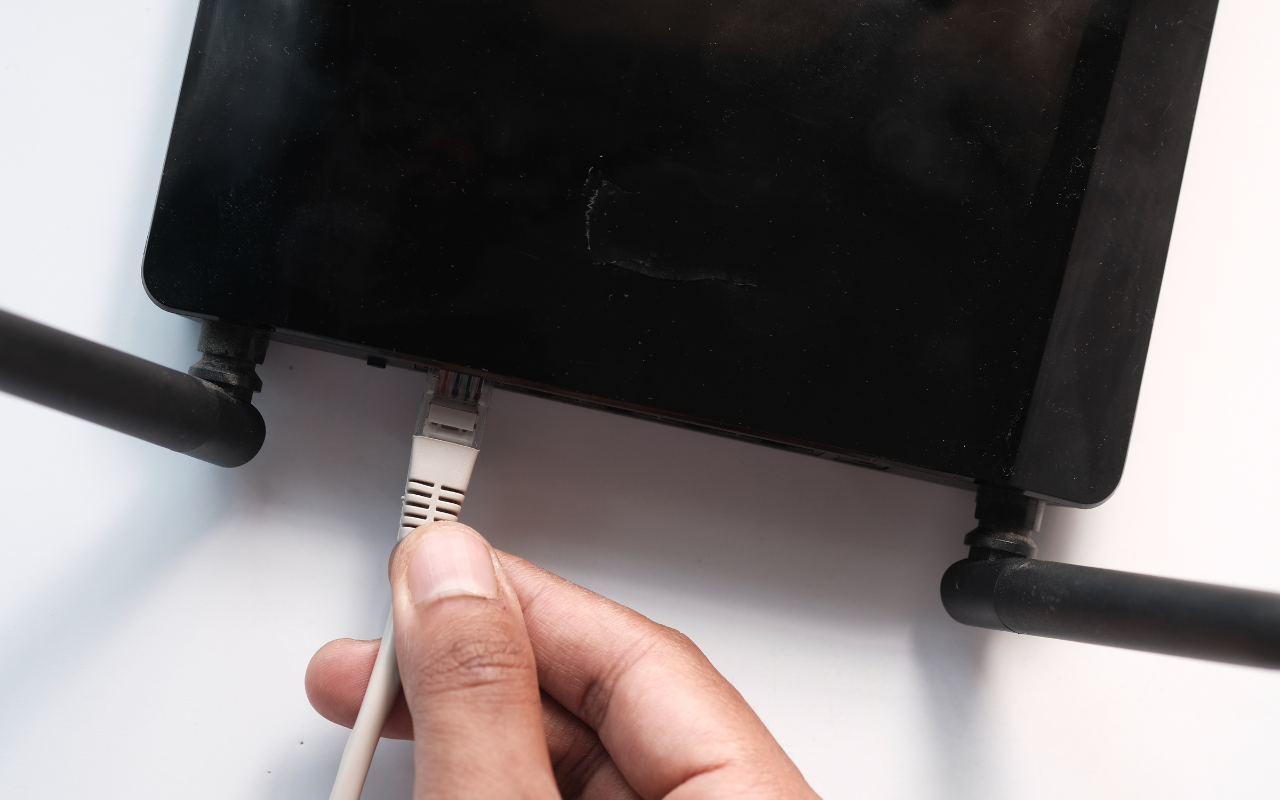
Step 3: Connect via Ethernet
To directly link your device to the network, attempt using an Ethernet cable. There can be an issue with your antenna, WiFi settings, or domestic interference if the internet operates in this way.
Step 4: Run Network Troubleshooter
Right-click the WiFi icon on a Windows computer, then choose “Troubleshoot problems.” Numerous network problems can be automatically found and fixed using this programme.
Step 5: Update Network Drivers
Outdated or corrupted network drivers can cause connectivity issues. Go to Device Manager on your PC, locate your network adapter, right-click it, and select “Update driver.”
Step 6: Reset TCP/IP Stack
If your device is still experiencing issues with no internet connection, you can reset the TCP/IP stack. Launch Command Prompt as administrator on Windows and type the following:
bash
CopyEdit
netsh int ip reset
ipconfig /release
ipconfig /renew
ipconfig /flushdns
Restart your PC after running these commands.

When It’s Time to Call in a Professional
If none of the above solutions work, the problem may be more serious, such as a hardware failure, faulty wiring, or a persistent software issue that requires in-depth diagnosis.
That’s where we come in.
To get you back online, Choicetel provides quick and reasonably priced computer and laptop repair services. Whether your issue lies with your network configuration, router settings, or your device itself, we have the tools and experience to solve the problem efficiently. Don’t waste hours trying to guess what’s wrong—contact us and let our professionals take care of it.
Other Common Network Issues We Can Help With
Beyond WiFi and internet connectivity issues, several other technical problems may affect your productivity and peace of mind. Here are some examples of how we can help:
- Is WiFi not showing up on your device? That could be a wireless card failure or interference issue.
- Are you getting frequent disconnects? Your router settings need to be fine-tuned, or there could be an issue with network congestion.
- Slow speeds even when connected? Malware, background applications, or an outdated device could be hogging your bandwidth.
With over 18 years of experience and a fully equipped workshop, we specialise in both in-store and onsite computer repairs—ideal for those who prefer convenience and quick resolutions. Whether you’re dealing with a stubborn PC or a faulty WiFi adapter, our standard computer repair services cover all major issues.
Need help with visual output or display errors? We also handle monitor screen repairs, ensuring a one-stop solution for all your tech troubles.
If you’re located in or around Brisbane, our specialised computer repairs in Bulimba offer quick and reliable service right where you need it most.
Preventing WiFi-But-No-Internet Problems in the Future
Once your connection is restored, it’s worth taking a few steps to prevent similar issues from recurring:
- Regularly reboot your modem and router. A weekly restart can prevent system hangups and memory overload.
- Update firmware. Most routers can be updated through their settings page—check your user manual or ISP documentation for instructions.
- Secure your network. Use a strong password to prevent unwanted users from leeching your bandwidth.
- Back up your settings. If your router allows it, save a backup of your configuration so you can quickly restore it if needed.
- Schedule regular device maintenance. Periodic software updates, malware scans, and disk cleanups can keep your devices running smoothly.
Bringing It All Together
Dealing with a “WiFi but no internet access” issue can be a headache, but it’s usually solvable with a little bit of methodical troubleshooting. Whether it’s a router setting gone awry or a problem with your device’s configuration, there’s almost always a fix.
Still stuck? Don’t stress. At Choicetel, we’re here to help restore your connectivity quickly and affordably. From hardware repairs to network optimisation, we offer everything you need to stay connected and productive.
Get in touch today—your internet should work, and we make sure it does.